
You've seen the viral posts. Someone shares their Claude Code setup - custom skills, Claude.MD, MCP servers, a second brain in Obsidian, automated workflows running overnight. And you think: "What on earth are they talking about??? I'm already behind."
You're not behind. Most people aren’t even seeing this sort of stuff.
You just haven't started yet. It’s all good. Starting just got stupidly easy.
Anthropic released a redesigned desktop app for Claude. Not the web version you use in your browser. Not the mobile app. A proper desktop application for Mac and Windows that puts Chat, Cowork, and Code all in one place. They did a big overhaul.
Why should you care?
Claude Code now has a built-in preview pane. You can see what you're building - live - right next to the chat. If you've used Lovable, Replit, or Bolt, you know the experience. Type what you want, watch it appear. This makes Claude Code a lot more accessible. And if you’ve been scared away by the technical complexity this is the time to hop in.
Previously, you had to set up a local development server manually. That meant opening the terminal, running commands, dealing with error messages that look like a foreign language. For anyone who doesn't code, that was the wall. It looked terrifying. Most people bounced off it.
That wall is gone now. Good riddance I say.
The "I'm not technical enough" problem
Here's what I think is actually happening. You hear people talking about their CLAUDE.md files, their MCP servers, their custom Skills installs, their Obsidian second brains synced via GitHub. And it sounds like you need a computer science degree just to get started.
You don't.
All of that stuff is advanced. It's what people build up to over weeks and months. It's like watching someone parallel park a lorry and deciding you can't learn to drive a car. As an afficionado of Euro Truck Simulator (yes, it’s a thing…) I can assure you parallel parking a 16 wheeler is difficult.
The people sharing those setups started exactly where you are - with an empty folder and a vague idea.
The actual starting point is embarrassingly simple.
Download the Claude desktop app
Click "Code" in the left sidebar
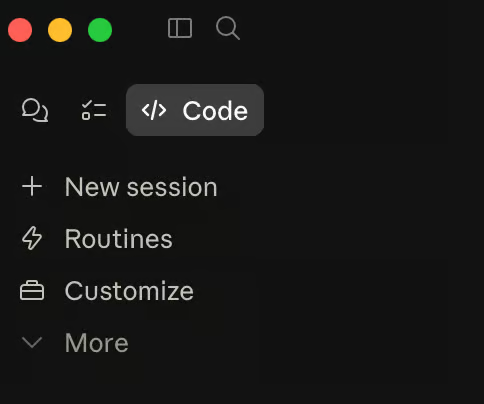
Click "New Session"
Choose "Local"
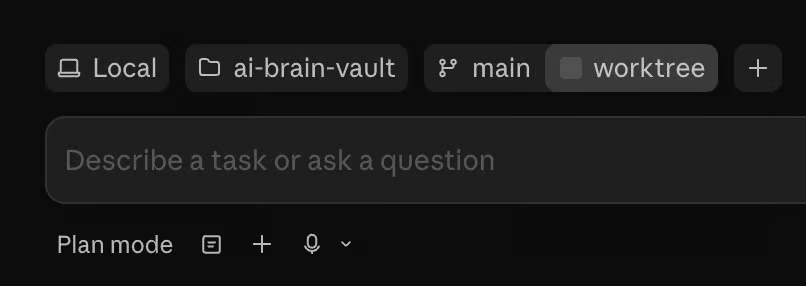
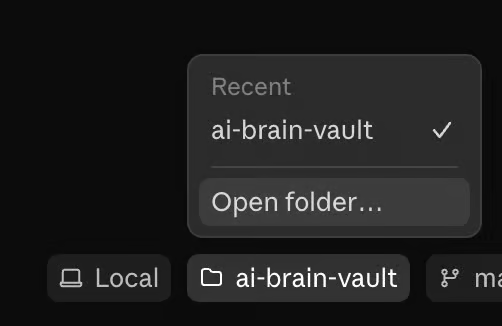
Pick a folder (make a new one on your desktop - it doesn't matter where)
Tell Claude what you want to build
That’s it!
I covered this one the livestream yesterday if you need an exact blow by blow. See the video up top.
But that's it. Six steps. No terminal. No GitHub. No configuration files. No skills. No MCPs.
Can you add that stuff later? YES! Should you? Absolutely!
But first keep it super simple.
The three Claudes (and why it's confusing)
The left sidebar now has three icons. They're small and aesthetic and honestly a bit hard to spot. Here's what they are:
Chat - This is normal Claude. The chatbot you know. You talk, it responds, you copy-paste what you need. It's for thinking, planning, and discussing.
Cowork - This is Claude doing work FOR you. Scheduled tasks, computer control, automations. Think of it as an employee you can give recurring jobs to.
Code - This is for building. Software, websites, apps, tools. It reads your files, writes code, runs commands, and now shows you a live preview of what it's creating.
Chat is for talking. Cowork is for working. Code is for building.
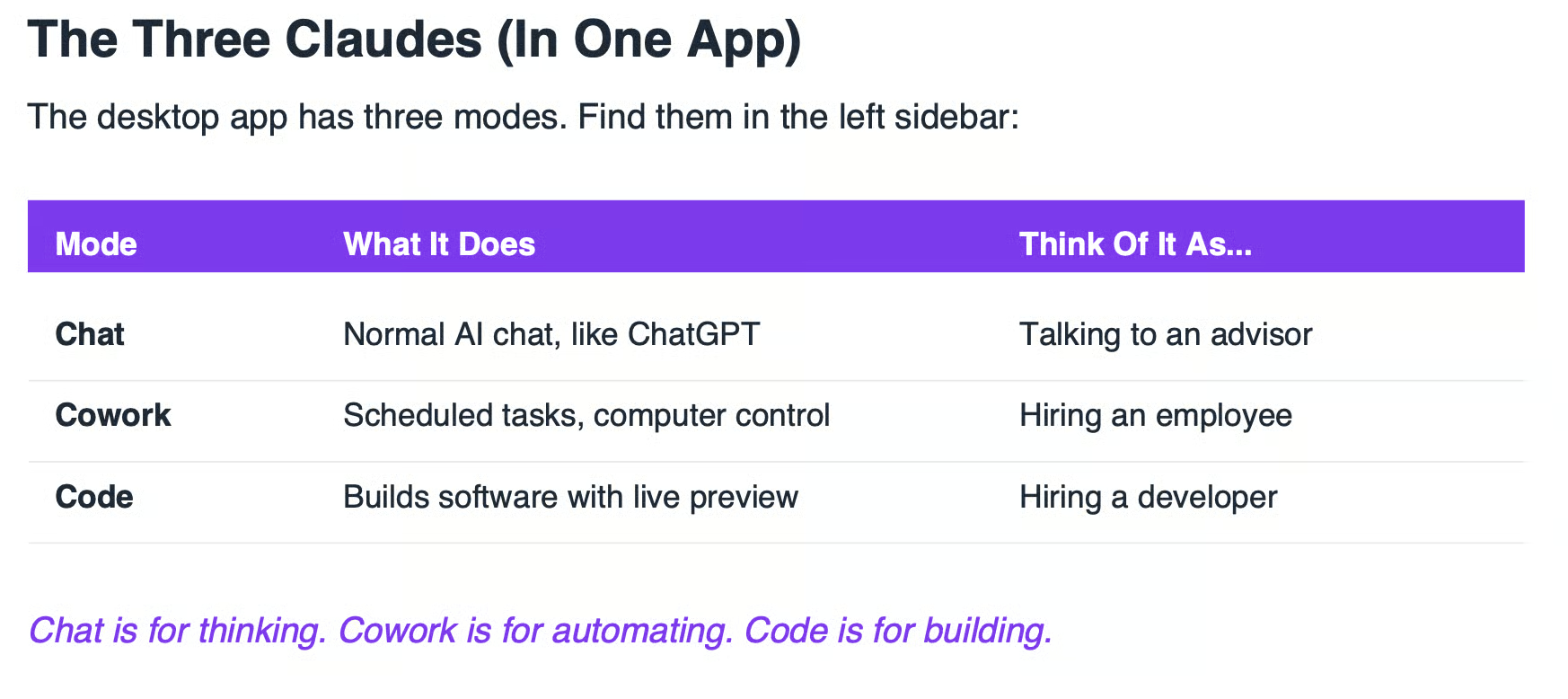
Claude Chat, Claude Cowork, Claude Code is a naming disaster. Everything starts with C.
They are even working with Microsoft right now to release Copilot Cowork!!
Heretics…
But once you use them, the separation makes sense. Most people should start in Chat to plan what they want, then move to Code to actually build it.
The preview pane
This is new. And a BIG shift for beginners.
When you're in Claude Code, there's a small dropdown in the top right corner. Click it, hit "Preview", and a panel opens on the right side of your screen.
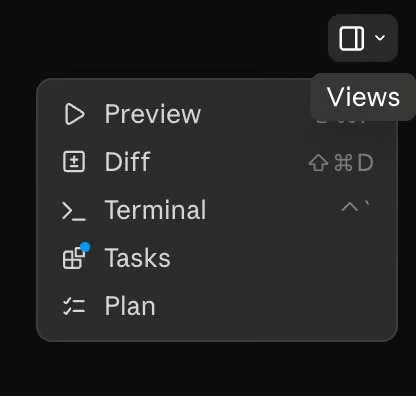
Preview. AT LAST
It shows you - live - what Claude is building. Every time it makes a change to your code, the preview updates. You can click on elements in the preview to tell Claude what to fix. You can give feedback by voice or text and watch it adjust in real time.
Key features of the preview:
No terminal setup - Claude handles the server for you
Click-to-select - Point at something in the preview and say "change this"
Live updates - See changes as Claude writes them
Responsive testing - Toggle between mobile and desktop views
This is what tools like Lovable have been doing from day one. Immediately showing you what you are building and changing the preview live as you work with your AI.
The difference is Claude Code gives you the actual files on your computer. You own what you build. Nothing's locked behind a platform. Oh, and platforms like Lovable use Claude behind the scenes anyway…and add a markup. So….probably makes sense to go to source.
Permission modes (or: how much do you trust the AI?)
Just below the chat pane, bottom left you’ll see a selector for Permission:
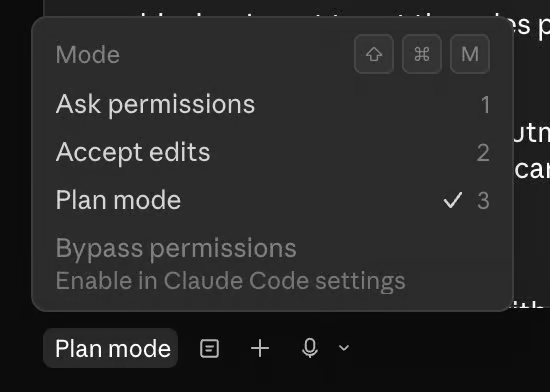
When Claude Code runs, it asks permission before doing anything new. There are four modes:
Ask Permissions - It asks before every single action. Safe, but you'll be clicking "yes" constantly. Good for anything high-risk. But otherwise very tedious.
Accept Edits - It goes ahead with file changes but asks before new actions (like installing software). This is the sweet spot for most people starting out.
Plan Mode - It doesn't make any changes at all. Just asks questions and outlines what it would do. Brilliant for the planning phase before you start building.
Bypass Permissions - The old "YOLO mode". It just goes for it. Risky on anything important, but fine for personal projects on your own computer. Depending on how risky you want to get obviously!
Start with Accept Edits. Move to Plan Mode when you're setting up a new project. Use Bypass only once you're comfortable and the stakes are low.
I know people will yell at me for this, but on personal projects - a portfolio site, a side project, a tool just for you - Bypass is fine. You're not going to break anything that matters. As you get more comfortable, you'll naturally figure out when to be more careful. The bigger risk is being so cautious you never actually build anything.
I personally YOLO Claude every evening when I go to bed.
NOT on critical projects! And nothing public! But otherwise? Yeah, have at it! Claude is a better coder than me so who am I to clip his wings.
What about pricing?
Claude Code is not cheap.
Real talk. The free or $20/month plan won't cut it for Claude Code. You'll run out of tokens too fast to build anything meaningful.
$20/month - You get access but you'll hit limits quickly on any real project
$100/month (Pro) - Solid for regular use
$200/month (Max) - What I use. Generally unlimited enough for daily building
If you're building a business, the $100 or $200 plan pays for itself almost immediately. I struggle to think of a better investment. I've built tools in an afternoon that would have cost thousands to outsource.
But start with $20 to test the waters. See if you actually use it. Upgrade when you hit the ceiling, not before.
Beyond code - this is bigger than building websites and apps
Claude Code has Code right in the name. It must be for coders right? Nope!
The pattern it uses - give it context, let the agent work, get output - that applies to everything.
Content creation. Business operations. Research and analysis. Script writing. Any knowledge work where you'd normally sit at a computer and produce something, Claude Code can help with.
I use it for my entire business. Not just building my website. Drafting newsletters, generating scripts, creating PDFs, managing my project files. Brainstorming and deciding pricing strategies. Bookkeeping, customer support. Everything. The "Code" name is misleading. It's really an AI workspace that happens to be really good at code.
This is where it gets exciting for entrepreneurs. This is not about coding. Sure, you’ll be using code. But you're learning to work with an AI that can code, write, research, and automate - all from one interface. The code itself is sorta inconsequential honestly. It’s a means to an end.
Member Q&A
"Does it work in the terminal?" - Yes, 100%. Terminal gives you more power and flexibility. But if you've never used the terminal, the desktop app is the way to start. You can always graduate to the terminal later.
"What's the difference between Claude Code and Claude Cowork?" - Code is for building things (software, websites, tools). Cowork is for automating things (scheduled tasks, computer control, recurring processes). Code creates. Cowork operates.
"Best practices with large code bases?" - Claude Code now has a 1 million token context window, which is pretty huge. But you still don't want it looking at your entire codebase at once. Work module by module. If you're changing the homepage, you don't need it reading the database code. Focus it on what's relevant. This is good practice regardless of whether we use AI or not.
Kyle
Get the full daily digest in your inbox. Browse recent issues →