
I shipped a product change from the beach this weekend.
Not from a coffee shop by the beach.
Not from a laptop. Absolutely not from a laptop. Nowhere near sand. Made that mistake before!!!
Nope, from my iPhone.
ChatGPT app open. Codex running on my actual dev environment back home. I was just steering it from my phone: checking progress, answering questions, approving actions, nudging it in a different direction, and reviewing what it found.
To be clear the phone is not the dev machine. It’s not doing the heavy lifting. Your phone is just a remote control letting you control your setup back at home.
I want to show you how to set this up as well as from your laptop (back to main computer) so that your sessions are always synched across all devices.
What Codex Mobile Actually Is
Quick definition, because the naming is still confusing:
Codex is OpenAI’s coding agent. It can read code, edit files, run commands, work through tasks, ask for approvals, and help move a codebase forward.
Codex Mobile is the new ChatGPT mobile experience that lets you stay connected to Codex from your phone. Its INSIDE the ChatGPT app, not its own Codex app.
The important bit: this is not about your phone doing the work.
Codex is still running in the real environment: your Mac/PC, your laptop, your dedicated machine, or another connected dev setup. The mobile app gives you access to the live session so you can:
start or continue threads
answer Codex’s questions
approve actions
redirect the task
review findings
check diffs, terminal output, screenshots, and test results
move between connected host
The phone is not compiling anything. The phone is not replacing your workstation. The phone is letting you stay in the loop when you are not sitting in front of the workstation.
Why This Is A Bigger Deal Than It Looks
So what Kyle?
This seems like a minor thing until you get it set up honestly! Once you’ve left your computer
Just a year ago, building meant being at the machine. You needed the computing power. The editor. The terminal. The repo. The local environment. The screen.
The desk. Eww.
Even if the AI was doing a lot of the coding we spent time sitting down waiting for it to complete stuff so we can answer questions and nudge everything along.
Lots of downtime. But still at a desk.
That’s changed. The work can keep moving while you are away from the desk, because you do not need to sit there watching the agent think, run tests, hit an approval prompt, ask a question, or wait for your next instruction.
You can unblock it from your phone (or laptop). And have everything just keep on trucking.
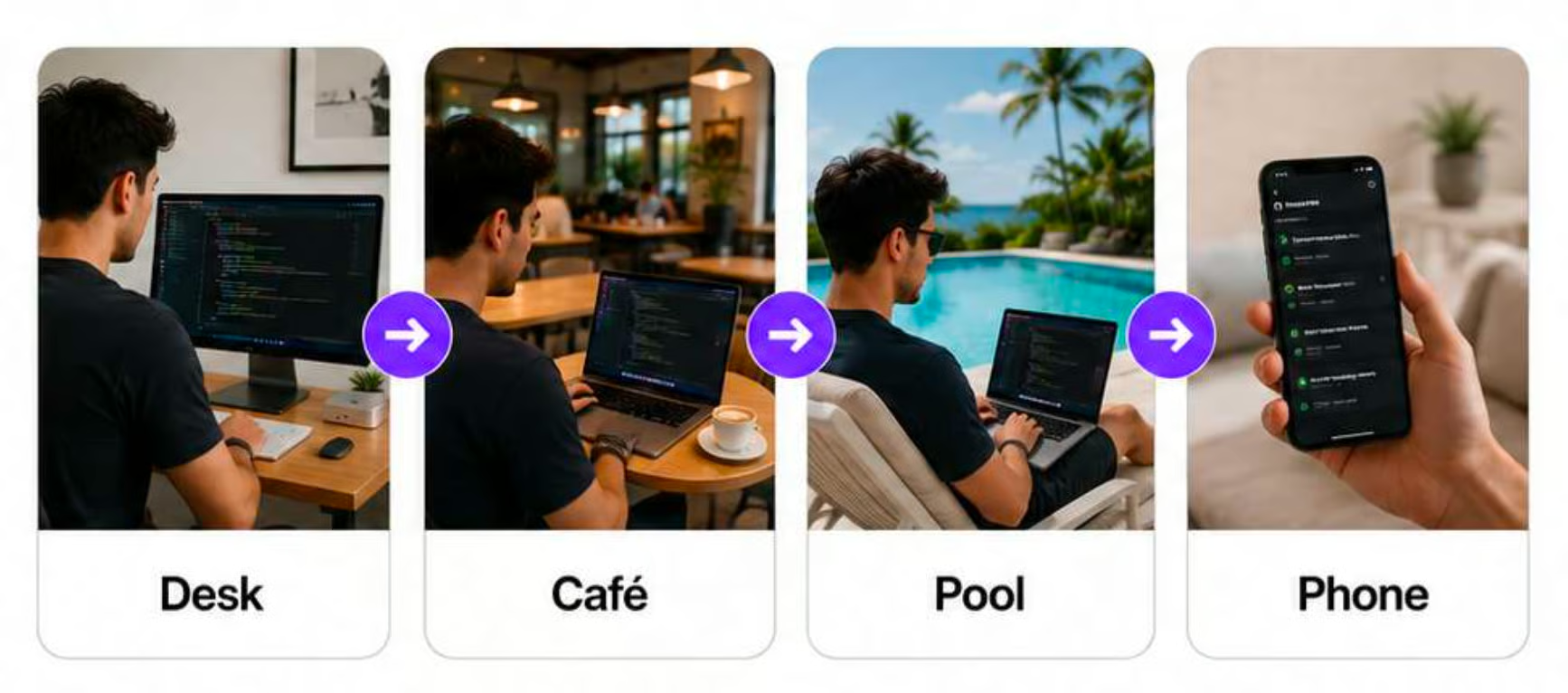
My day is normally:
check on overnight agents and set up the day’s tasks
shoot my livestream
move outside to the pool, pick up my projects on the laptop
have Codex compile questions for me, go for a stroll and answer all using voice
finish up some projects on the laptop in a cafe
in the evening set up overnight larger tasks to pick up in the AM
If you’ve used Claude Code or Codex before you’ll know that one of THE most annoying problems was continuing threads on different devices. It’s actually why OpenClaw was/is so popular - it promises “unification”.
Claude Code also has ways to do this but it’s a mess. Too many methods! Dispatch, Remote and Channels? For me it made more mess and confusion rather than less.
Codex has much more elegantly solved this with their new updates.
The Setup
The old “phone coding” guides were mostly about SSH clients, remote boxes, and tiny keyboards. Sure you could get the job done but it was a mess.
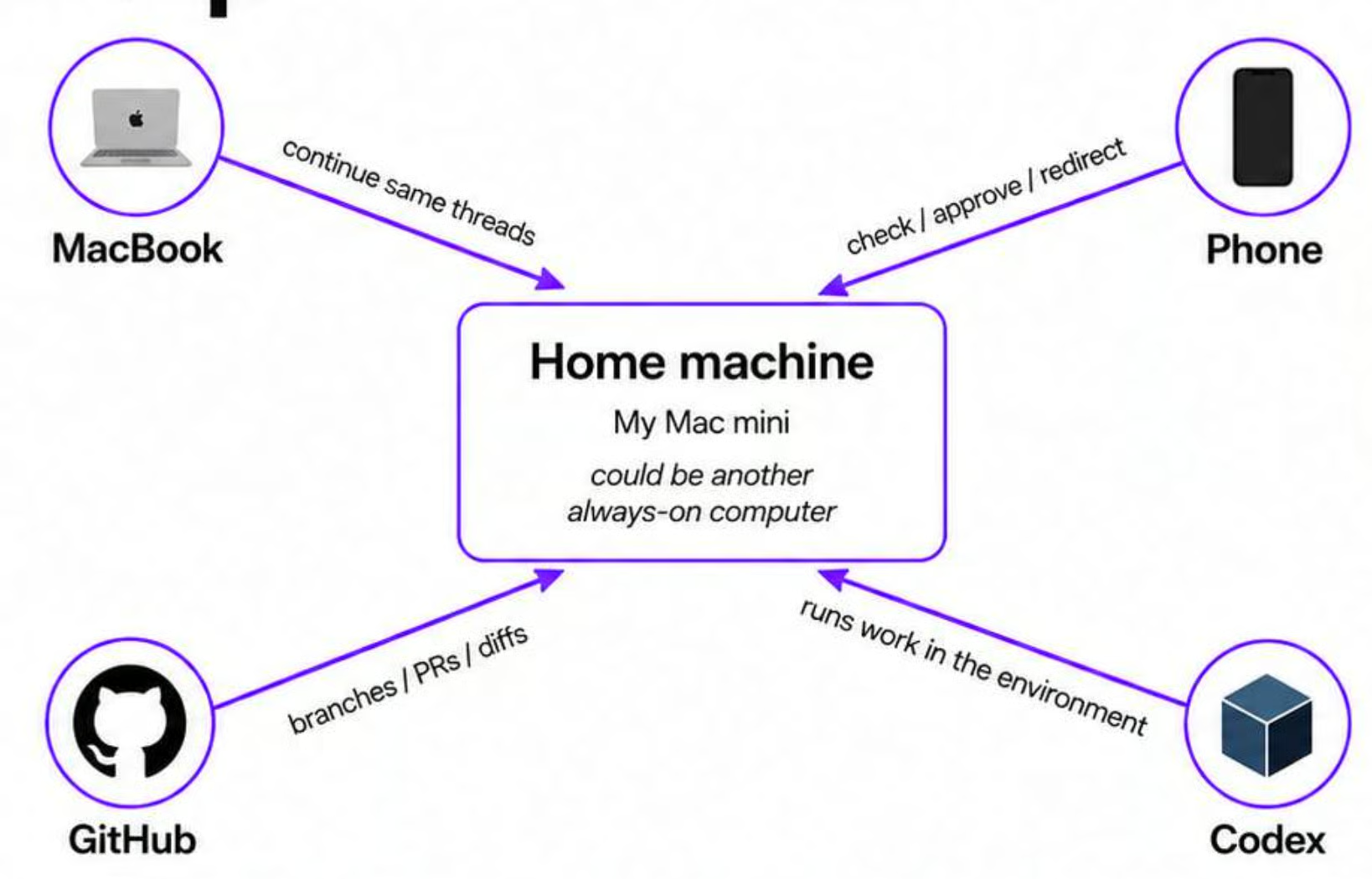
The new setup is more like:
Codex running on your main machine
ChatGPT app on your phone with mobile access to the live Codex session
Laptop connected to main machine via remote connection.
That’s sorta it.
Here’s how:
Update ALL your Codex apps and ChatGPT app on every device. I saw a LOT of people forget to do this and get confused.
On your home machine go to Settings > Connections > Control this Mac. Toggle on Allow this device to be discovered and controlled and optionally Keep this Mac awake.
Under devices that can control this Mac click Add. A QR code will appear for phone access. Scan it with your phone and it’ll synch your ChatGPT mobile app and your main computer. Done!
If you also want to add a laptop open up Codex on the laptop, head to Settings > Connections > Control other devices and Add. Authorise using your account and you should see your main computer as an addable device. Confirm.
Optionally, set it so that your main computer can also access your laptop. That creates 2- way connection. But I prefer centralising all my threads only on my main device. Up to you here!
Once done you’ll be able to see ALL your chats identically on all devices. And be able to pass work off between them seamlessly. Allowing you to build anywhere on any device. Very cool!
To the task,
Kyle
Get the full daily digest in your inbox. Browse recent issues →